Check out my new Photoshop to HTML tutorial!
I’ve released a new tutorial that goes into more depth and creates a better final result!
Check it out: From Photoshop to HTML
What we will make
In this tutorial I’m going to show you how to take the design created for my
Fundamentals of Interface Design tutorial and turn that into a usable web interface.
What you will need
- Adobe Photoshop.
- The PSD File which can be downloaded below
- A pure text editor. I like Notepad++.
The Source
Download the PSD and HTML files
A Note about WYSIWYG Editors
I don’t use WYSIWG editors like Adobe Dreamweaver. Therefore don’t be surprised if you find yourself doing a bit of coding. Don’t worry though, it won’t hurt too much 
Part One: Visualizing the CSS and HTML.
Before I begin anything I take an objective look at my interface. What can I create using CSS/HTML? What do I need to slice? This saves me time and often gets me the cleanest results.
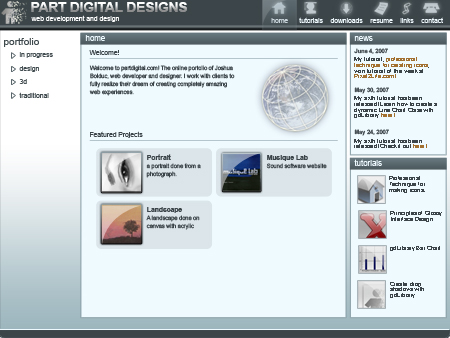
What sections do you see?
This is what I’m thinking to myself as I do this.
The following can be achieved with CSS
- The interface size and placement.
- The text and link colors, size, etc.
- The panel placement, size, border and background color.
- The borders on the icons.
- The Horizontel line between sections in the body.
The following will need to be sliced up.
- The header icons (including the active page icon).
- The header graphics, including logo and “Part Digital Designs” text.
- the header background color.
- The Background gradient.
- The gradient color of the panel headers.
- The footer.
- One of the navigation triangles.
Part Two: Slicing the interface.
I work simultaneously between slicing and CSS/HTML. This is fastest method I’ve found when working on a personal project. However if you are working in a group it’s best to keep each step separate.
Note: For the sake of this tutorial I’m going to stick with Photoshop. However, if you have it, I highly recommend Adobe Image Ready or Adobe Fireworks for slicing up your images.
Ok let’s get started.
Open the file that I’ve included for this tutorial.
Your First Slice
Press K to select the slice tool and draw a box around the logo and title as shown.
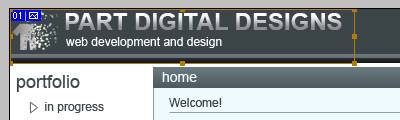
Right click this slice and click Edit Slice Options. Name it header_title and click OK.
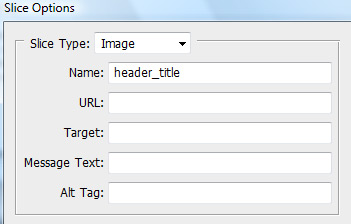
Remember these two steps as we slice up the interface because from now on I’m not going to be as detailed
in my explanations.
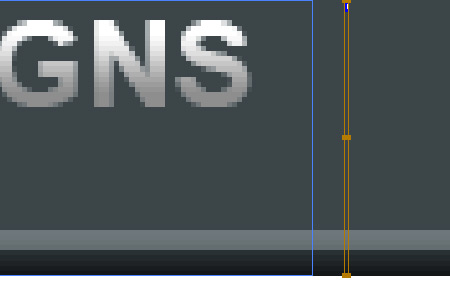
Create another slice near the one you just made that is 1 pixel wide and name it header_bg. It should look like the image below.
Create a slice around the home icon (including the selcted graphic) and name it icon_home. Make sure it has a width of 60 pixels and a height of 54 pixels.
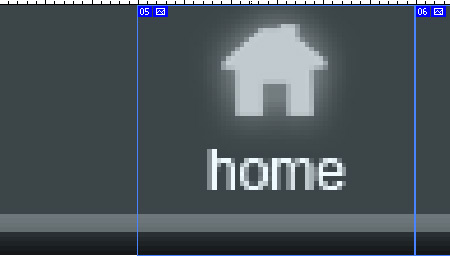
Repeat the process for the remaining icons.
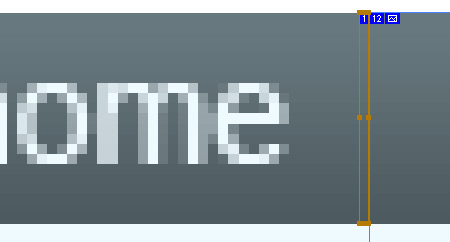
Create a slice at the home panel header that is 1 pixel wide and 19 pixels high. Name it panel_bg
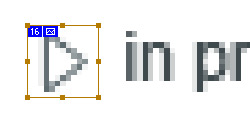
Create a slice around one of the triangles and name it triangle-idle. Give it a width and height of 13 pixels.
Quick Tip: Hold down Shift as you draw the slice and it will make a perfect square.
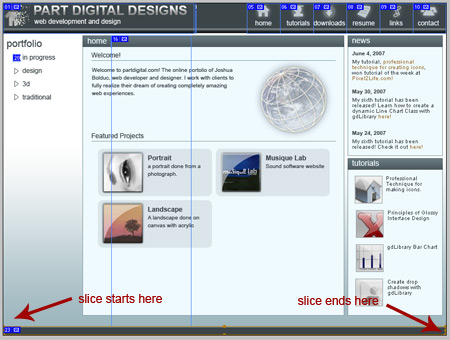
Create a slice around the entire footer and name it footer
Go to File > Save for web or devices.
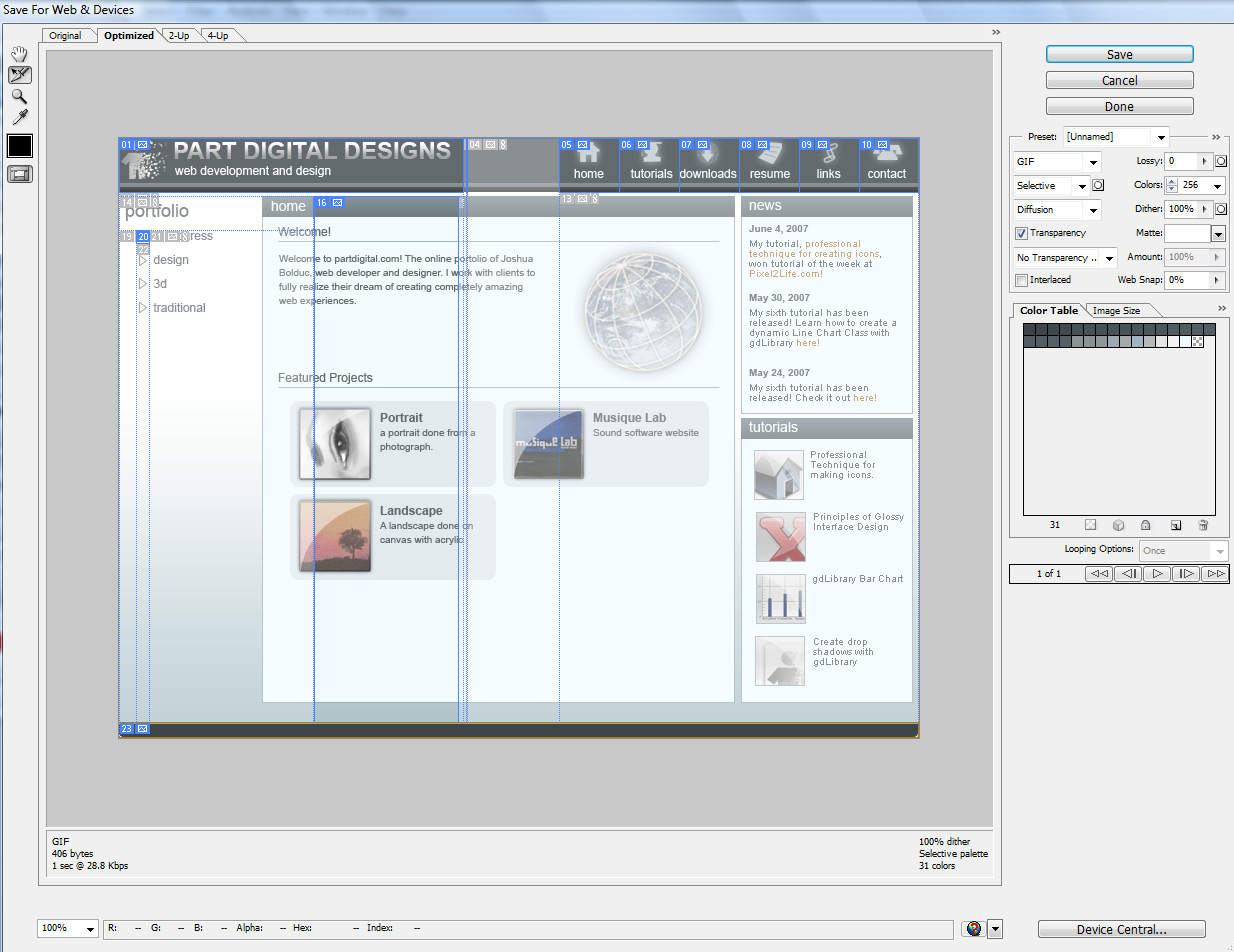
Click for a larger view
Make sure that the image type is set to GIF
Click Save and make sure your settings match these.
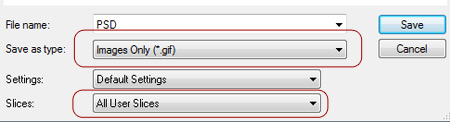
Click Save
OK, we haven’t sliced up everything yet, but we have enough to get started. So minimize Photoshop for now and open up your favorite pure text editor.
Now let’s start to build the interface in HTMl. . .
Comments
Post by PSD to HTML on November 4, 2009
Nice tutorial, but you havn't mention how to make tableless websites..., Thanks! Jitesh
Post by Anonymous on January 27, 2010
Great tutorial. I was curious how designers turned PSD mockups into functional pages. Also "The Horizontel line between sections in the body." should be horizontal*. :)
Post by Laurence Stremlow on March 5, 2010
Dreamweaver has been for a while my goto application for years. I really don't know what I would undoubtedly do with out it. There were periods when I first started out making use of the program, and I thought it was way too complicated. Now I fly around it, and it has grown to be a great asset in my tool box. Nonetheless thanks for the write-up.
Post by pargo on March 23, 2010
Very good explained. But it doesn't work. I the end the content area is a mess. I guess you've forgot to write something about the content-wrapper divs. Thanks.
Post by Hannelore Gonazlez on May 28, 2010
When I design a sight I design first and code second. I find that using pure CSS layout , like an obnoxious backseat driver, often ends up stearing the design a little bit in the end. This is most often a problem when floating elements inside a centered div - the darn footer elements colapse upwards; don't float use positining and margins? Crossbrowser catastrophe! Usually one simple table takes care of so many things.
Post by John on August 15, 2010
Absolutely excellent! For a long time I've known HTML and CSS, but have never quite gotten the hang of doing both from scratch on a PSD design. Thank You!
Post by Duc Thai on August 20, 2010
Really nice tutorial. I have a question. From Photoshop, how do i get all styles to build the stylesheet file?
Post by Sicko on October 11, 2010
Thanks! I also added ".content-wrapper .panel_content" style with min-height:451px.
Post by admin on March 25, 2011
Hello Ahmad, could you tell me which errors you are referring to? Thanks!
Post by Bill K on September 15, 2011
Great tutorial. I really learned a lot. There were a few issues I ran into. They're simple mistakes I'd imagine were made while transcribing the steps into tutorial format. (I could be wrong, of course. And I only bring them up because I think others may have had these issues as well. Certainly nothing personal.): 1. - For Part Five, in the HTML under the , you have the title as portfolio... but in the CSS, you only have .portfolio-menu h1 ... there isn't any specifications for .portfolio-menu h2. This is easily fixed by changing the tags in the HTML to tags. 2. - For Part Seven, in the HTML on line 05 and 06 you have an extra , I think. The two panels in the "right-wrapper" weren't displaying correctly, but they did when I removed the extra Anyway, thanks again for the tutorial. I actually learned even more having to troubleshoot these parts. -Bill